Echo in Meeting Rooms: Causes, Troubleshooting & Best Fixes
Audio echo is one of the most common problems in meeting rooms. It affects communication, reduces meeting quality, and creates a poor experience for remote participants. Echo usually occurs when audio from the room speakers is picked up again by the microphone and sent back to the far end.
Fortunately, most echo problems can be resolved with proper troubleshooting and system configuration.
Common Symptoms
- Remote participants hear their own voice.
- Audio repeats after a short delay.
- Continuous echo during meetings.
- Poor call quality.
- Feedback noise.
- Voice sounds distant or hollow.
Common Causes
- Speaker volume too high
- Microphone placed too close to speakers
- Acoustic Echo Cancellation (AEC) disabled
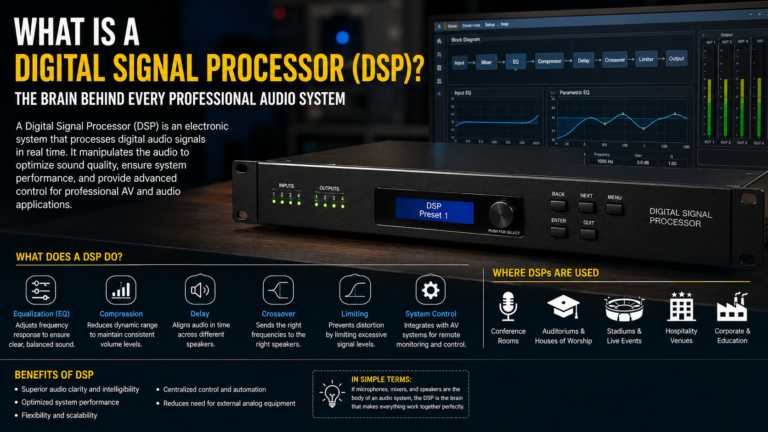
- Incorrect DSP configuration
- Multiple microphones picking up the same audio
- Laptop microphone enabled together with room microphone
- Poor room acoustics
Step-by-Step Troubleshooting
1. Check Speaker Volume
Reduce the speaker volume to a comfortable level. Excessive volume often causes microphones to capture speaker output.
2. Verify Microphone Placement
Ensure microphones are positioned away from loudspeakers.
Avoid placing microphones directly under ceiling speakers.
3. Enable Acoustic Echo Cancellation
Most conferencing platforms and DSPs include AEC.
Verify AEC is enabled in:
- Microsoft Teams Rooms
- Zoom Rooms
- Biamp Tesira
- Q-SYS
- Shure IntelliMix
4. Check DSP Configuration
If your room uses a DSP:
- Verify AEC reference routing.
- Check microphone gain.
- Confirm speaker routing.
- Verify mute logic.
Incorrect DSP programming is a common cause of persistent echo.
5. Disable Unused Microphones
Having multiple active microphones can introduce unwanted audio pickup.
Mute or disconnect unused microphones.
6. Check Laptop Audio
If users join meetings from laptops inside the room:
- Mute the laptop microphone.
- Mute laptop speakers.
- Use the room’s AV devices instead.
7. Inspect Ceiling Microphones
Beamforming ceiling microphones should be:
- Properly calibrated
- Updated with the latest firmware
- Installed according to manufacturer recommendations
8. Improve Room Acoustics
Rooms with hard surfaces reflect sound.
Consider adding:
- Acoustic panels
- Carpets
- Curtains
- Ceiling tiles
These reduce echo and improve speech clarity.
9. Restart AV Devices
Restart:
- DSP
- Camera
- USB peripherals
- Teams Room or Zoom Room compute device
This often resolves temporary audio issues.
10. Update Firmware
Install the latest firmware for:
- DSP
- Microphones
- Cameras
- Conference systems
Manufacturers regularly improve audio performance through updates.
Quick Troubleshooting Checklist
✅ Reduce speaker volume
✅ Check microphone placement
✅ Enable AEC
✅ Verify DSP routing
✅ Disable laptop microphone
✅ Restart AV equipment
✅ Update firmware
✅ Improve room acoustics
Best Practices
- Always use certified conferencing hardware.
- Keep microphones away from speakers.
- Perform regular audio testing.
- Update firmware regularly.
- Use quality DSPs with built-in AEC.
- Train users to avoid joining the same meeting twice from different devices.
Frequently Asked Questions
Why do remote participants hear their own voice?
The room microphone is capturing audio from the speakers and sending it back into the meeting.
Does Microsoft Teams have built-in echo cancellation?
Yes. Microsoft Teams includes software-based echo cancellation, and many certified devices also provide hardware-based AEC.
Can poor room acoustics cause echo?
Yes. Rooms with glass walls, tiled floors, or concrete surfaces often create sound reflections that increase echo.
Is a DSP required?
For medium and large meeting rooms, a DSP with Acoustic Echo Cancellation is strongly recommended for consistent audio quality.
Conclusion
Echo is usually caused by microphone placement, excessive speaker volume, incorrect DSP settings, or poor room acoustics. Following a structured troubleshooting process helps identify the root cause quickly and improves the meeting experience for everyone. Regular testing, proper hardware placement, and updated firmware are key to maintaining clear, echo-free communication.
External Links
- Microsoft Teams Audio Troubleshooting – https://learn.microsoft.com/microsoftteams/
- Zoom Support – https://support.zoom.com/
- Biamp Tesira – https://support.biamp.com/
- Q-SYS Training – https://training.qsc.com/
- Shure Audio Institute – https://www.shure.com/en-US/training/