AV over IP Multicast Not Working? Complete Troubleshooting Guide
Multicast is one of the most important technologies in an AV over IP system. It allows a single video source to be distributed to multiple displays without increasing network bandwidth. When multicast stops working, displays may show a black screen, freeze, or lose connection.
This guide explains the most common causes and how to fix them.
Common Symptoms
- Display shows No Signal
- Video freezes randomly
- Decoder disconnects
- Source visible on only one display
- Packet loss
- High network traffic
- Video lag or stuttering
Common Causes
- IGMP Snooping disabled
- Multicast routing not configured
- Incorrect VLAN settings
- QoS disabled
- Network loop
- Switch firmware outdated
- Encoder or decoder offline
- IP address conflict
Step-by-Step Troubleshooting
1. Check Encoder Status
Verify the encoder is powered on and connected to the network.
Confirm the link LED is active.
2. Check Decoder Status
Ensure every decoder is online and connected to the correct switch.
Restart the decoder if required.
3. Verify Network Cables
Inspect all Ethernet cables.
Replace damaged CAT6 or CAT6A cables.
4. Enable IGMP Snooping
IGMP Snooping prevents multicast traffic from flooding the network.
Verify it is enabled on all managed switches.
5. Check VLAN Configuration
Ensure encoders and decoders are on the correct VLAN.
Incorrect VLAN assignments can block multicast traffic.
6. Verify QoS Settings
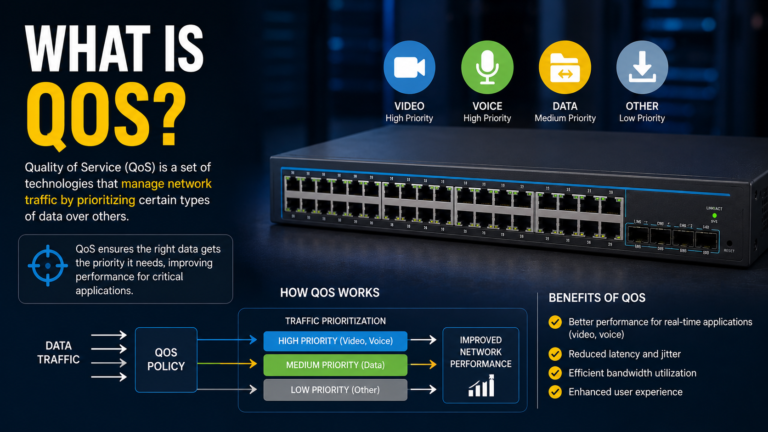
Enable Quality of Service (QoS) to prioritize AV traffic over normal network traffic.
7. Check IP Address Conflicts
Ensure every AV device has a unique IP address.
Duplicate IP addresses can cause communication failures.
8. Restart Network Switch
Restart the managed switch during a maintenance window.
Temporary network issues are often resolved after a reboot.
9. Update Firmware
Install the latest firmware for:
- Encoder
- Decoder
- Network Switch
Firmware updates improve stability and compatibility.
10. Monitor Network Traffic
Use your switch management interface to check:
- Port utilization
- Packet loss
- Multicast groups
- Network errors
Quick Troubleshooting Checklist
✅ Encoder online
✅ Decoder online
✅ CAT6 cable connected
✅ IGMP Snooping enabled
✅ VLAN configured
✅ QoS enabled
✅ No duplicate IP addresses
✅ Firmware updated
Best Practices
- Always use managed network switches.
- Separate AV traffic using VLANs.
- Enable IGMP Snooping on every switch.
- Configure QoS for video traffic.
- Use Gigabit or 10 Gigabit switches for enterprise deployments.
- Label all network devices and ports.
Frequently Asked Questions
What is multicast?
Multicast allows one source device to send audio and video to multiple displays simultaneously without creating separate streams for each display.
Why is IGMP Snooping important?
IGMP Snooping controls multicast traffic and prevents unnecessary network flooding, improving overall performance.
Can unmanaged switches support AV over IP?
Small systems may work, but managed switches are strongly recommended because they support VLANs, QoS, and IGMP Snooping.
How do I know if multicast is failing?
Common signs include frozen video, packet loss, missing displays, or high network utilization.
Conclusion
Most AV over IP multicast issues are caused by incorrect network configuration rather than faulty hardware. By checking IGMP Snooping, VLANs, QoS, firmware, and IP addressing, you can quickly restore reliable video distribution and maintain a stable AV network.
Related Articles
- AV over IP: Complete Enterprise Guide
- HDMI No Signal? Complete Troubleshooting Guide
- Microsoft Teams Rooms Camera Not Working
- Zoom Rooms Audio Not Working
- Echo in Meeting Rooms: Causes, Troubleshooting & Best Fixes
External Links
- SDVoE Alliance – https://sdvoe.org/
- AVIXA – https://www.avixa.org/
- Cisco Multicast Documentation – https://www.cisco.com/
- Netgear AV Solutions – https://www.netgear.com/business/av-over-ip/
- Q-SYS Networking Resources – https://www.qsys.com/