Zoom Rooms Audio Not Working? Complete Troubleshooting Guide
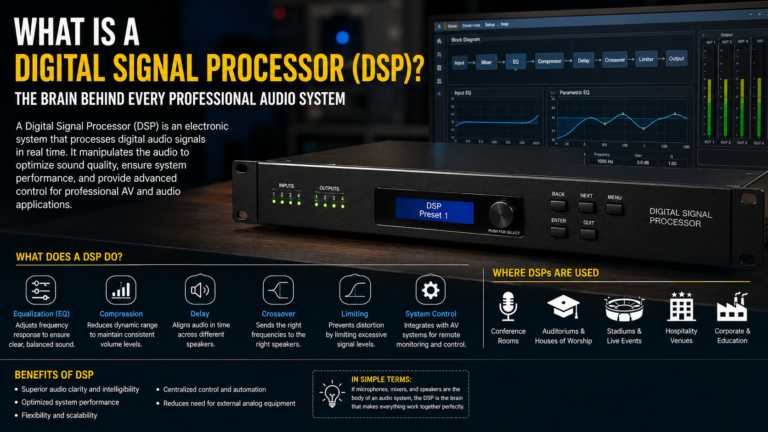
Poor audio can disrupt meetings and reduce collaboration. If your Zoom Room has no sound, microphone issues, or speaker problems, the cause could be hardware, software, USB connectivity, DSP configuration, or incorrect audio settings.
Follow these troubleshooting steps to restore audio quickly.
Common Symptoms
- No microphone detected
- Participants cannot hear you
- No sound from speakers
- Echo during meetings
- Audio cutting in and out
- Distorted audio
- Microphone muted automatically
Common Causes
- Incorrect audio device selected
- USB cable disconnected
- Muted microphone
- Speaker volume set too low
- DSP configuration issue
- Outdated firmware
- Windows audio service problem
Step-by-Step Troubleshooting
1. Check Audio Devices
Open Zoom Rooms Settings and verify the correct microphone and speaker are selected.
2. Check Volume Levels
Increase:
- Speaker volume
- Windows volume
- Amplifier volume
Ensure nothing is muted.
3. Restart Zoom Room
Restart the Zoom Room computer.
Temporary software issues are often resolved after a reboot.
4. Verify USB Connections
Reconnect:
- USB microphone
- USB speaker
- DSP USB cable
Try another USB port if needed.
5. Test Microphone
Open Windows Sound Settings.
Speak into the microphone and confirm the input level changes.
6. Test Speakers
Play a test sound.
If there is no audio, check:
- Amplifier power
- Speaker connections
- DSP routing
7. Restart Audio Devices
Power cycle:
- DSP
- USB peripherals
- Audio interface
- Amplifier
Wait 30 seconds before powering them back on.
8. Check DSP Configuration
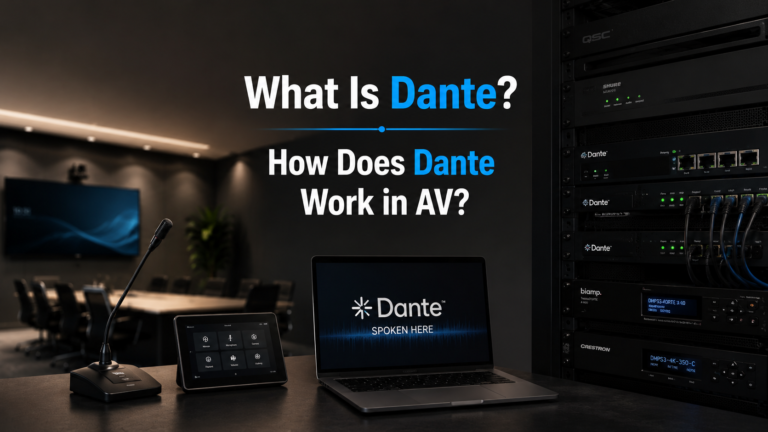
If using Biamp, Q-SYS, or another DSP:
- Verify routing
- Check mute status
- Confirm USB routing
- Verify gain levels
9. Update Firmware
Install the latest firmware for:
- Camera
- DSP
- Speakerphone
- Zoom Room Controller
10. Update Zoom Rooms
Install the latest Zoom Rooms application and Windows updates.
Quick Checklist
✅ Microphone selected
✅ Speaker selected
✅ USB connected
✅ DSP online
✅ Amplifier powered on
✅ Firmware updated
✅ Restart completed
Best Practices
- Use certified Zoom Rooms devices.
- Keep firmware updated.
- Test audio before important meetings.
- Label all USB cables.
- Perform monthly system health checks.
Frequently Asked Questions
Why can’t others hear me?
Usually because the wrong microphone is selected, the microphone is muted, or the USB connection has failed.
Why is there no sound from speakers?
Check speaker selection, amplifier power, Windows audio settings, and DSP routing.
Does restarting Zoom Rooms help?
Yes. Restarting often resolves temporary software and USB communication issues.
Conclusion
Most Zoom Rooms audio issues can be resolved by checking device selection, USB connections, DSP routing, firmware, and Windows audio settings. Following a structured troubleshooting process minimizes meeting downtime and ensures reliable communication.