Microsoft Teams Rooms Setup Guide (2026)
Hybrid work has changed how organizations collaborate. Microsoft Teams Rooms (MTR) provides a dedicated meeting room solution that combines certified hardware, Microsoft Teams software, and intelligent meeting features to deliver a seamless collaboration experience.
Whether you’re deploying a small huddle room or a large boardroom, Microsoft Teams Rooms helps users start meetings with a single touch.
What is Microsoft Teams Rooms?
Microsoft Teams Rooms is a certified meeting room solution designed to provide a native Microsoft Teams experience. It combines hardware such as touch controllers, cameras, microphones, speakers, and compute devices into one integrated system.
Users can join meetings, share content, and collaborate without connecting personal laptops.
Main Components
A standard Microsoft Teams Rooms setup includes:
- Touch Controller
- Compute Device
- Conference Camera
- Microphone
- Speakers
- Display or Interactive Panel
- Microsoft Teams Rooms License
How It Works
- Schedule a Teams meeting.
- The meeting appears on the room controller.
- Tap Join.
- Camera, microphone, and speakers activate automatically.
- Share content wirelessly or using HDMI/USB-C.
Benefits
- One-touch meeting join
- High-quality audio and video
- Simple room management
- Native Microsoft Teams experience
- AI-powered meeting features
- Easy content sharing
- Centralized device management
- Supports hybrid work
Types of Microsoft Teams Rooms
Basic Rooms
Ideal for small meeting rooms with one display.
Standard Rooms
Suitable for medium-sized collaboration spaces with advanced audio and video.
Signature Rooms
Designed for executive boardrooms using multiple cameras, premium microphones, and dual displays.
Hardware Requirements
Typical hardware includes:
- Certified Teams Room Compute
- Touch Controller
- USB Camera
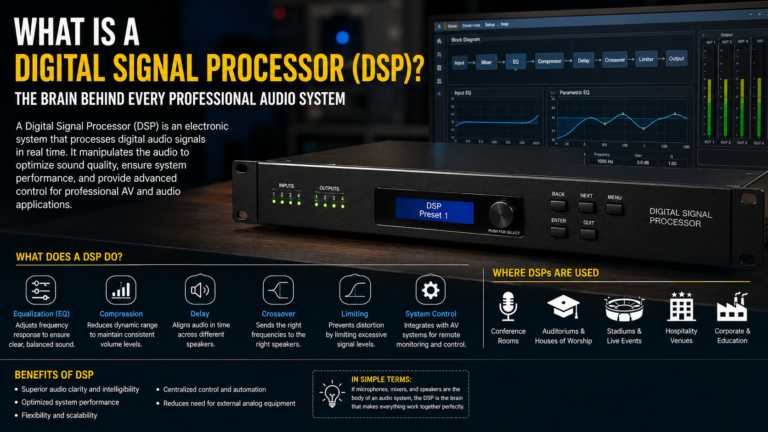
- Speakerphone or DSP
- Display or Projector
- Network Connection
Popular certified manufacturers include Logitech, Poly, Neat, Yealink, Jabra, Lenovo, Dell, and HP.
Licensing
Microsoft offers different licensing options depending on room size and management requirements.
Choose the appropriate Teams Rooms license to enable:
- Calendar Integration
- Meeting Join
- Device Management
- Remote Monitoring
- Advanced Security
Best Practices
- Use certified Microsoft Teams Rooms devices.
- Position the camera at eye level.
- Install beamforming microphones for better audio.
- Use dual displays for large meeting rooms.
- Keep firmware updated.
- Test audio and video before important meetings.
Common Applications
Microsoft Teams Rooms is widely used in:
- Corporate Offices
- Boardrooms
- Training Rooms
- Educational Institutions
- Government Organizations
- Healthcare Facilities
- Conference Centers
Frequently Asked Questions
Can Teams Rooms join Zoom meetings?
Yes. Many certified devices support joining third-party meetings such as Zoom and Webex through Direct Guest Join.
Can I share content wirelessly?
Yes. Users can share content through Microsoft Teams or connect using HDMI or USB-C, depending on the room configuration.
Does Teams Rooms support dual displays?
Yes. Most certified systems support dual displays for video and content sharing.
Conclusion
Microsoft Teams Rooms simplifies collaboration by providing a dedicated meeting room experience with professional audio, video, and centralized management. With certified hardware and intelligent meeting features, it improves productivity and delivers a consistent experience across every meeting space.
Helpful Resources
- Microsoft Learn: https://learn.microsoft.com/microsoftteams/rooms/
- Microsoft Teams Rooms: https://www.microsoft.com/microsoft-teams/microsoft-teams-rooms
- Microsoft Teams Admin Center: https://admin.teams.microsoft.com/